Sources
See and route every newsletter and RSS feed feeding your digests
What is the Sources page?
The Sources page is the single place where every piece of content Readless has picked up for you shows up — the newsletter senders who have emailed your custom address, plus any RSS feeds you've added. Think of it as your full subscription shelf: one row per source, with a pill on the right that tells you exactly which digest each one lands in.
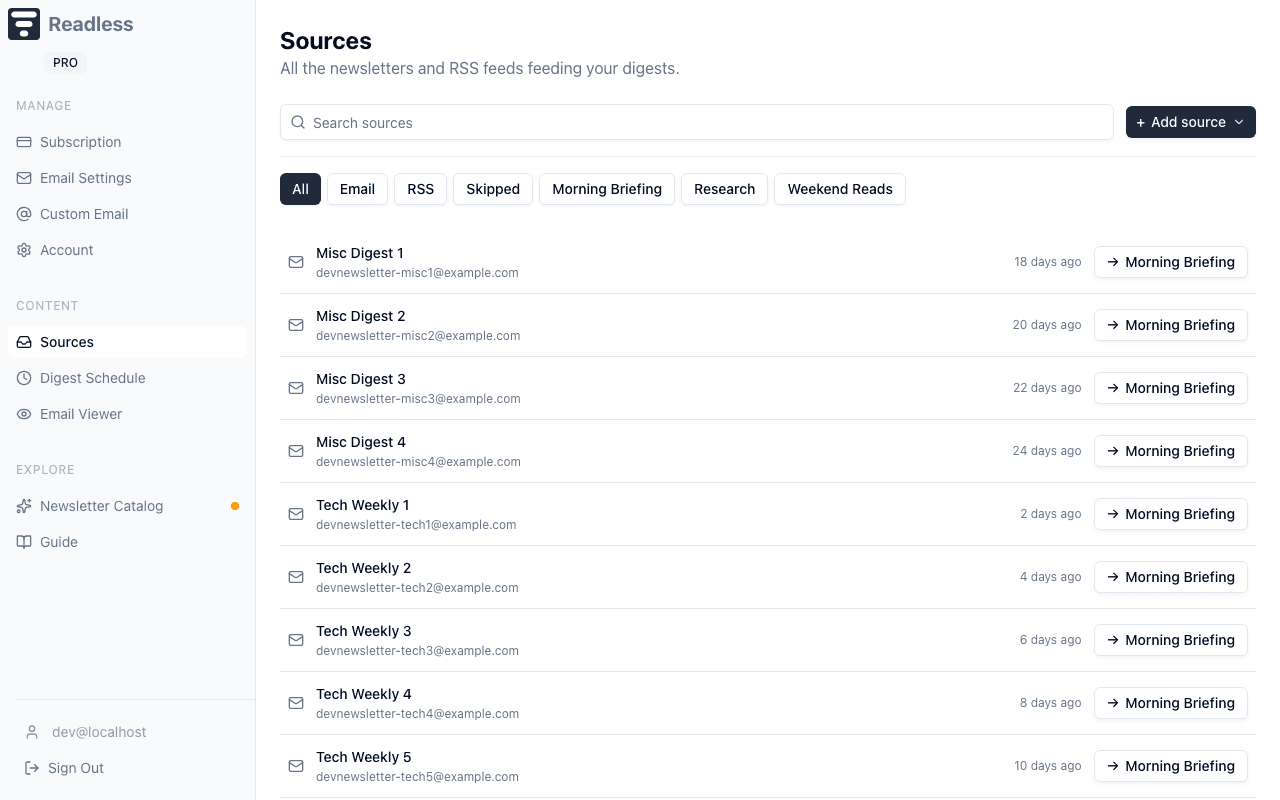
Routing pills tell you where it lands
Each source has a routing pill on the right. The pill is a statement of effective delivery — it names the digest this source will actually show up in. Click it to change the routing.
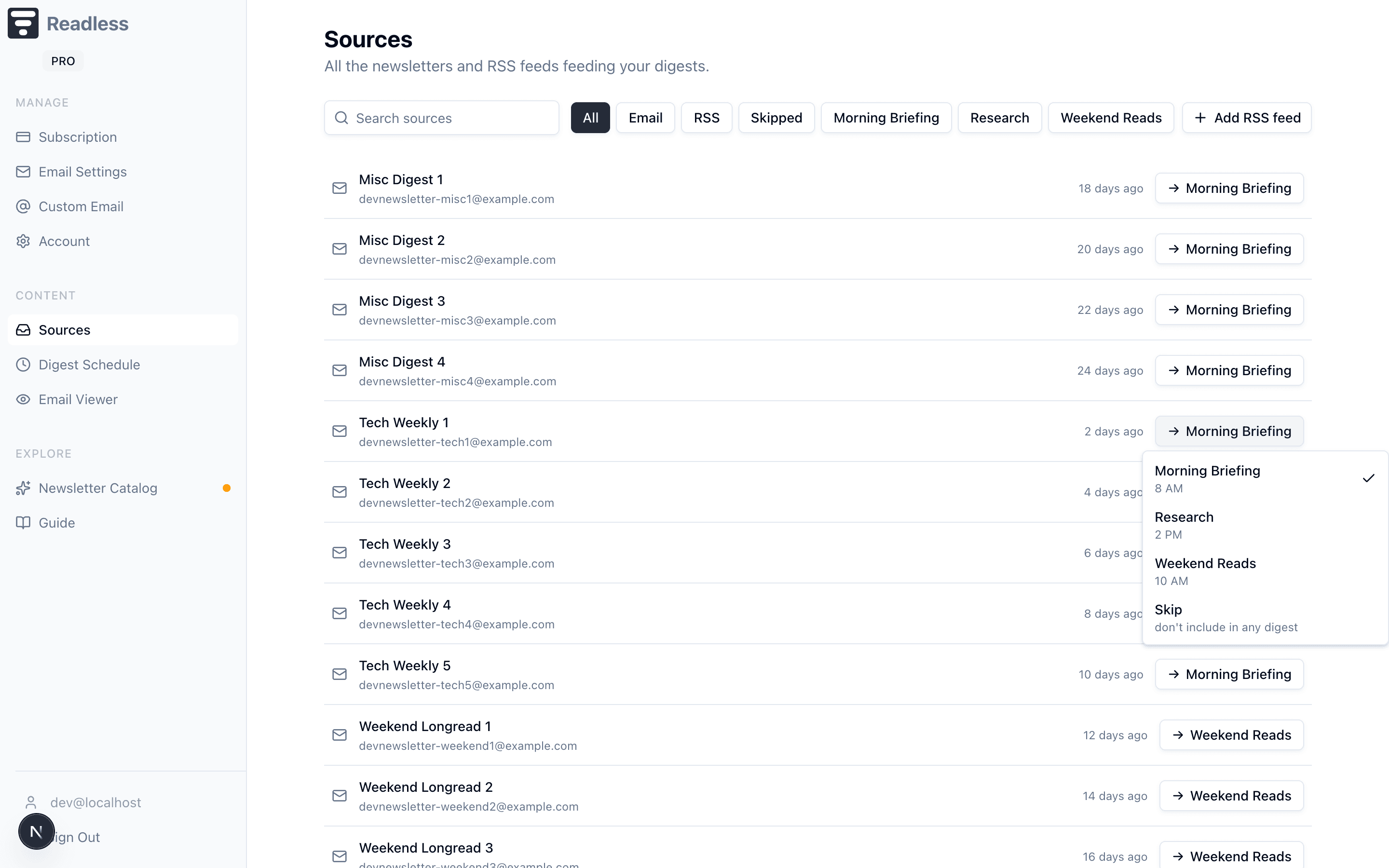
- A schedule name (for example Morning Briefing) — this source is routed to that schedule.
- Your default schedule's name — you haven't explicitly routed this source, so it rides along on your default (see below).
- Skipped — you told Readless to ignore this sender entirely. New emails from a skipped sender are filed away on arrival and never enter a digest.
The default schedule
One of your schedules is marked as the Default schedule. Any source you haven't explicitly routed — including newly-detected senders that start arriving tomorrow — automatically flows into the default. It's your catch-all so nothing slips through the cracks.
Where to change the default
The default-schedule toggle lives on each schedule's edit form (see Digest Schedules). Flipping it on one schedule automatically unsets it on the previous default — exactly one schedule is default at a time.
Filtering the list
If your source list gets long, use the filter chips above the list to narrow it down:
- All / Email / RSS — switch by source type.
- Skipped — show only the senders you've muted, so you can unskip them later if you change your mind.
- A schedule's name — show only the sources currently routed to that schedule.
There's also a search box at the top-left for quick lookup by sender name or address.
Adding a new source
Open + Add source in the top-right. The menu has two options:
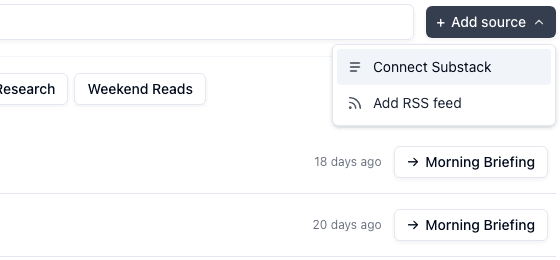
- Connect Substack — paste a handle, profile URL, or publication URL. Substack guide.
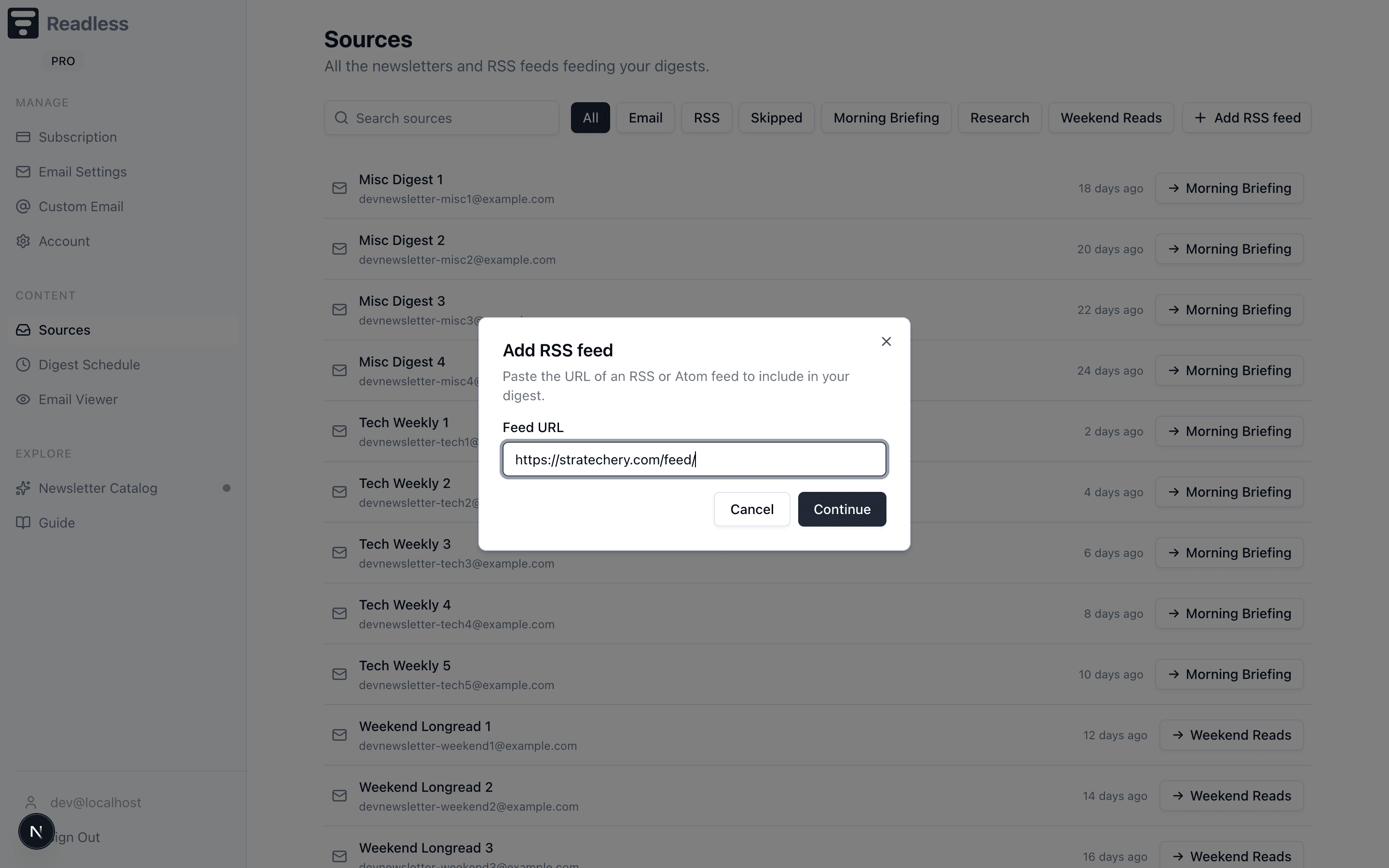
- Add RSS feed — paste a feed URL for any blog or news site that publishes RSS. RSS guide.
Skipping vs. removing
Skip (on a newsletter sender) tells Readless: keep accepting mail from this sender, but never include it in a digest. Handy for senders you can't unsubscribe from but don't actually want to read.
Remove feed (on an RSS row) actually deletes the RSS subscription from your account — Readless will stop polling it. Use this when you're done with a feed for good; if you just want a break, route it to a paused schedule instead.
Example setup
- Morning Briefing (default, weekdays at 8 AM) — tech newsletters and your Hacker News RSS feed land here.
- Weekend Reads (Saturdays at 10 AM) — long-form writers routed explicitly so they stay out of weekday digests.
- Marketing spam you can't unsubscribe from — skipped, so it lands in the Email Viewer archive but never interrupts a digest.
How it connects
- Digest Schedules — schedules are the when; sources are the what.
- RSS Feeds — deeper guide to adding and finding feed URLs.
- Custom Email — newsletter senders are detected from mail sent to your custom address.